
Tidak ada produk di keranjang.
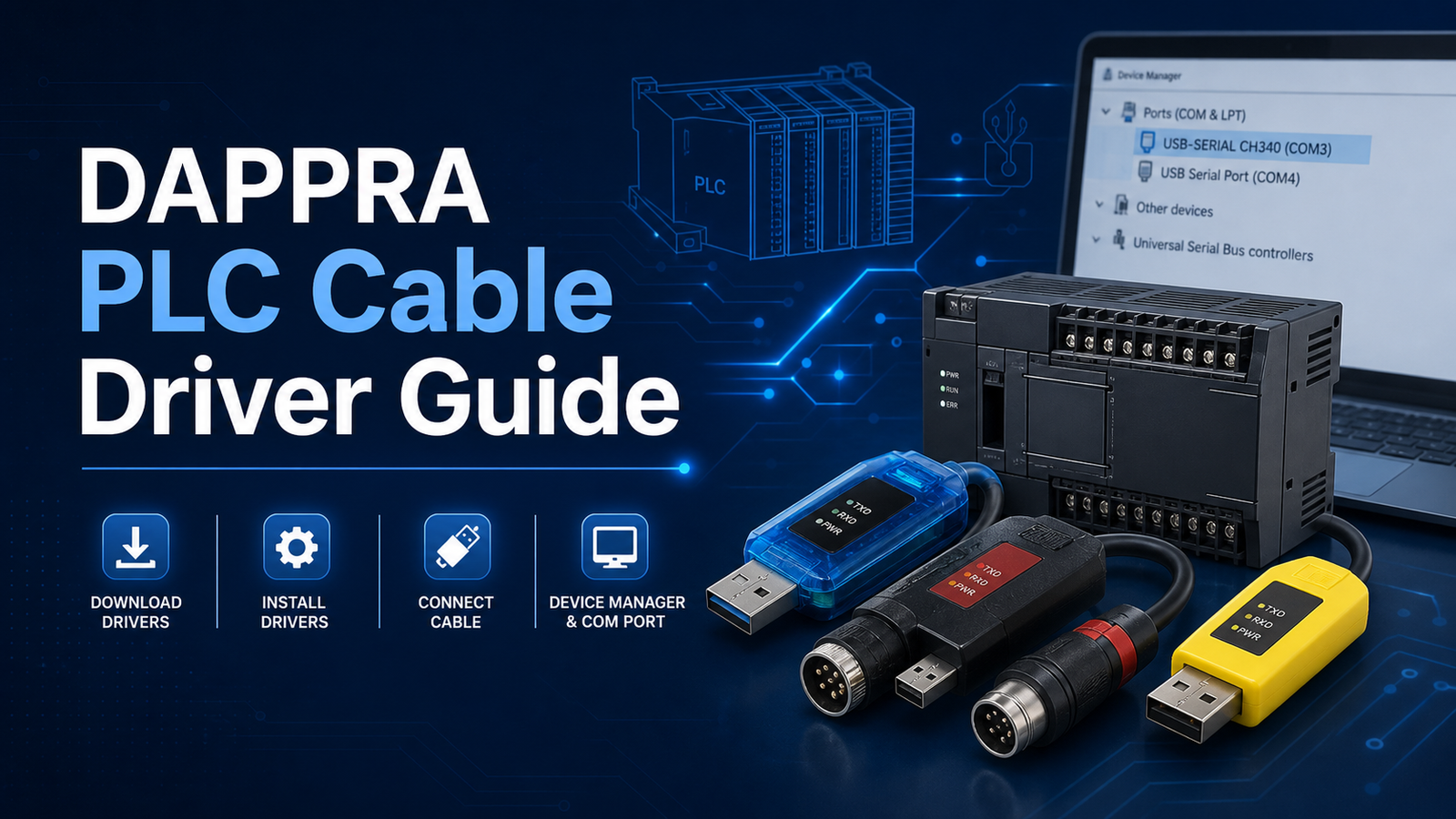
Download Driver Kabel PLC DAPPRA Lengkap dan Panduan Instalasi
DAPPRA PLC Cable Driver Guide
DAPPRA PLC Cable Driver Download & Installation Guide
Find the correct USB driver for your DAPPRA PLC programming cable by checking the chip type, cable model, or Windows Device Manager prompt. Download the driver, install it, and confirm the COM port before connecting to PLC software.
1
Plug in the cable
Connect the DAPPRA PLC programming cable to your computer USB port.
2
Check Device Manager
Look for USB2.0-Serial, FT232R USB UART, CP2102, USB Serial Port, or other prompts.
3
Install the right driver
Download the matching driver and confirm the generated COM port after installation.
Standard PLC Cable Drivers
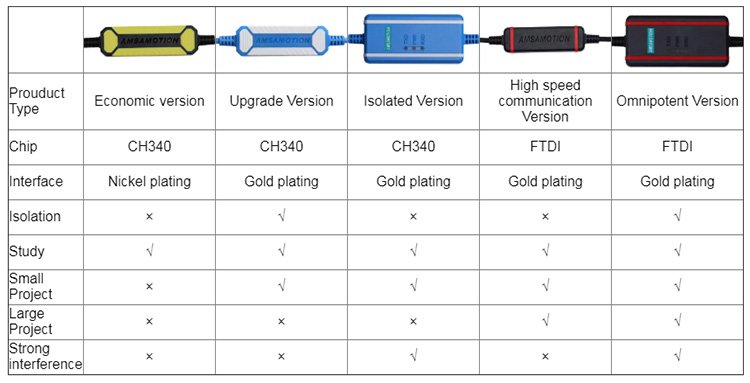
Most USB PLC programming cables use CH340, FT232, or CP2102 chips. Choose according to the Device Manager name or the cable description.
Common Driver
CH340 Driver
Use this when Windows Device Manager shows USB2.0-Serial or USB Serial.
- Common for many USB PLC programming cables
- Install before using the USB communication cable
- A COM port should appear after installation
FTDI Chip
FT232 Driver
Use this when Device Manager shows FT232R USB UART or USB Serial Port.
- For FTDI imported chip cables
- COM number may be different on each computer
- Reconnect the cable after driver installation
Special Cable
CP2102 Driver
Use this when Device Manager shows CP2102 USB to UART Bridge Controller.
- For selected special PLC communication cables
- Also used by several special cable models
- Check the model list before downloading
How to Determine Which Driver to Install
Drivers are categorized mainly by chip type, not only by cable model. The simplest method is to check the Windows Device Manager prompt after plugging in the cable.
| Driver | Device Manager Prompt / Cable Description | Download |
|---|---|---|
| CH340 Driver | USB2.0-Serial, USB Serial, or common USB PLC programming cable. | Download |
| FT232 Driver | FT232R USB UART, USB Serial Port, or FTDI imported chip cable. | Download |
| CP2102 Driver | CP2102 USB to UART Bridge Controller, or selected special DAPPRA PLC cable models. | Download |
| USB-ETH Driver | Only for DAPPRA USB-ETH communication cable. Not applicable to other communication cables. | Download |
| 0CB20 S7-300 Driver | For DAPPRA 0CB20 / S7-300 PLC communication cable. Use when the device is not recognized correctly by Windows. | Download |
| FX3G / 3GA MINI Line Driver | Only for DAPPRA FX3G / 3GA MINI line communication cable. | Download |
| XBTZG935 Driver | Only for DAPPRA XBTZG935 communication cable model. | Download |
| USB-AFPX Driver | Only for Panasonic AFPX PLC square port data cable. | Download |
| USB-CP1H Driver | Only for DAPPRA USB-CP1H communication cable model. | Download |
| CA3-USBCB-01 Driver | Only for DAPPRA CA3-USBCB-01 communication cable model. | Download |
Note: Some plug-and-play communication cables do not need an additional driver. Except for those models,
USB PLC communication products generally need the driver installed before use.
Installation Steps
- Confirm the exact DAPPRA PLC cable model or chip type.
- Download the corresponding Windows driver from the table above.
- If the file is compressed, extract the ZIP package first.
- Run the driver installer and follow the on-screen instructions.
- Reconnect the USB cable and open Windows Device Manager.
- Confirm that a COM port appears, then select this COM port in your PLC software.
Device Manager Reference
Before CH340 driver
Device Manager may show a yellow exclamation mark and USB2.0-Serial.
After CH340 driver
Device Manager may show USB-SERIAL CH340, followed by a COM port number.
Before FT232 driver
Device Manager may show FT232R USB UART.
After FT232 driver
Device Manager may show USB Serial Port, followed by a COM port number.
COM3 is only an example. The actual COM port number can be different on every computer.
PLC Cable Driver FAQ
Quick answers for common driver installation and communication problems.
How do I know whether my cable uses CH340 or FT232?
Plug the cable into the computer and open Device Manager. If it shows USB2.0-Serial or USB Serial, try CH340. If it shows FT232R USB UART or USB Serial Port with FTDI chip information, use FT232.
Why is there a yellow exclamation mark in Device Manager?
This usually means Windows has detected the USB device but the correct driver is not installed. Install the matching driver and reconnect the cable.
Why is my COM port different from the example?
The COM number is assigned by Windows. COM3 is only an example; use the actual COM port shown on your computer.
Can I use the USB-ETH driver for other PLC cables?
No. The USB-ETH driver is only for the DAPPRA USB-ETH communication cable model and is not applicable to other communication cables.
What should I do if the driver cannot be found automatically?
Right-click the unknown device in Device Manager, choose Update Driver, and select the folder where the extracted DAPPRA driver files are located.
















Tambah komentar
Anda harus masuk untuk berkomentar.